
Loading the creation workspace…
Remove mosaic blocks and unblur images with AI
Give pixelated or blurred areas a more natural look. AI uses nearby colors and textures to generate plausible details and improve your photo’s appearance. Try it directly in your browser.
Images illustrate detail reconstruction. AI-generated details may differ from the original face or image.
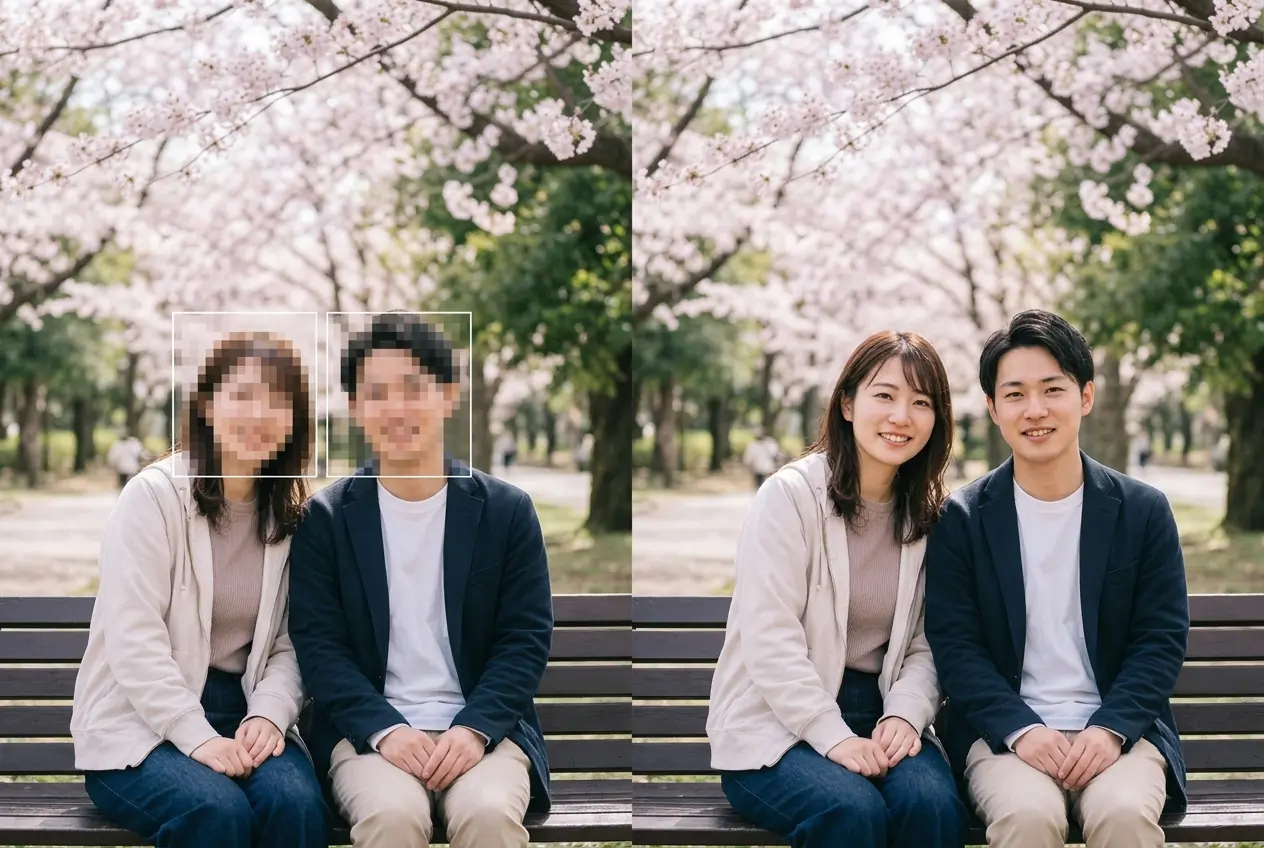
What is AI mosaic removal?
AI mosaic removal fills in areas obscured by mosaic blocks or blur by generating details based on the surrounding image. It uses nearby colors, shapes, lighting and textures to create a more consistent appearance. AIKissfiy uses image-editing models guided by written instructions. Hidden original information cannot be retrieved, and generated faces or patterns may differ from the original photo.
How to remove mosaic blocks from a photo in 3 steps
Use the provided prompt or adjust it to describe the areas you want to improve.
1. Upload an image
Choose one of your own photos or another image you have permission to edit.
2. Review the instructions and generate
Check the model, prompt, image settings and required credits, then click Generate. You need to sign in to generate an image.
3. Review and download
Preview the result and check faces, patterns and text before downloading. Images downloaded by free users include a watermark.
A simpler way to improve pixelated photos
Details that blend into the scene
Use surrounding colors, shapes and textures as a guide when generating details in mosaic-covered areas.
For mosaic blocks and unwanted blur
Try improving areas affected by pixelation or blur as well as mosaic blocks. Results depend on the condition of the image.
A ready-to-use prompt
Editing instructions are already filled in. Add details such as “only the right side of the background” to guide the edit.
Choose an image-editing model
Try different models or settings and compare their results on the same photo. Required credits are shown before generation.
No installation needed
Use your phone or desktop browser without installing a dedicated photo editor.
Try it with free credits
Sign in and claim free check-in credits. You can try an edit when you have enough credits for the selected model and settings.
Improve mosaic and blur in everyday photos
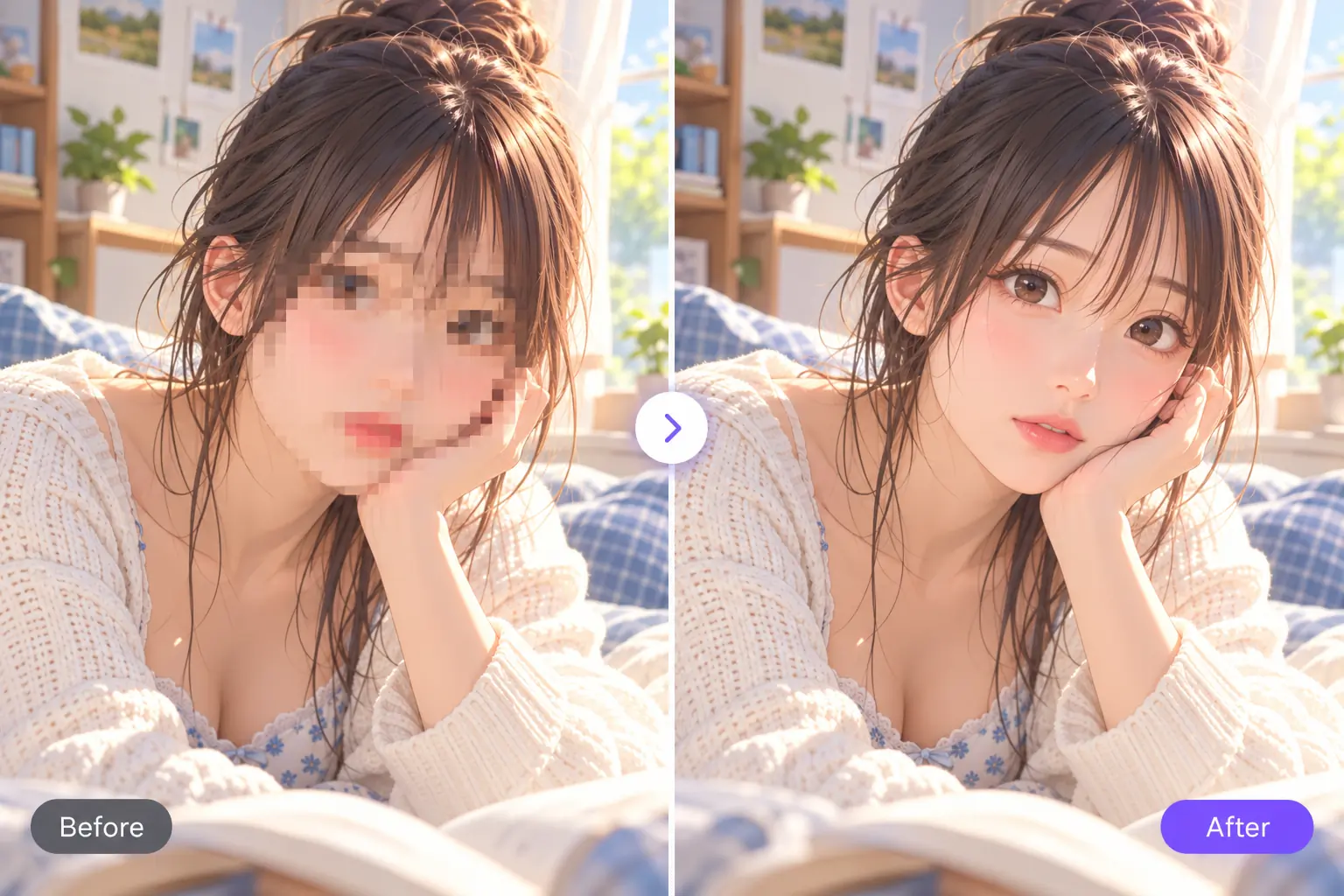
Images illustrate detail reconstruction. AI-generated details may differ from the original face or image.
Your portraits and selfies
Try filling in mosaic blocks or blur you added to your own photos. Facial features and hair details may change, so review the generated result.
Improve a photo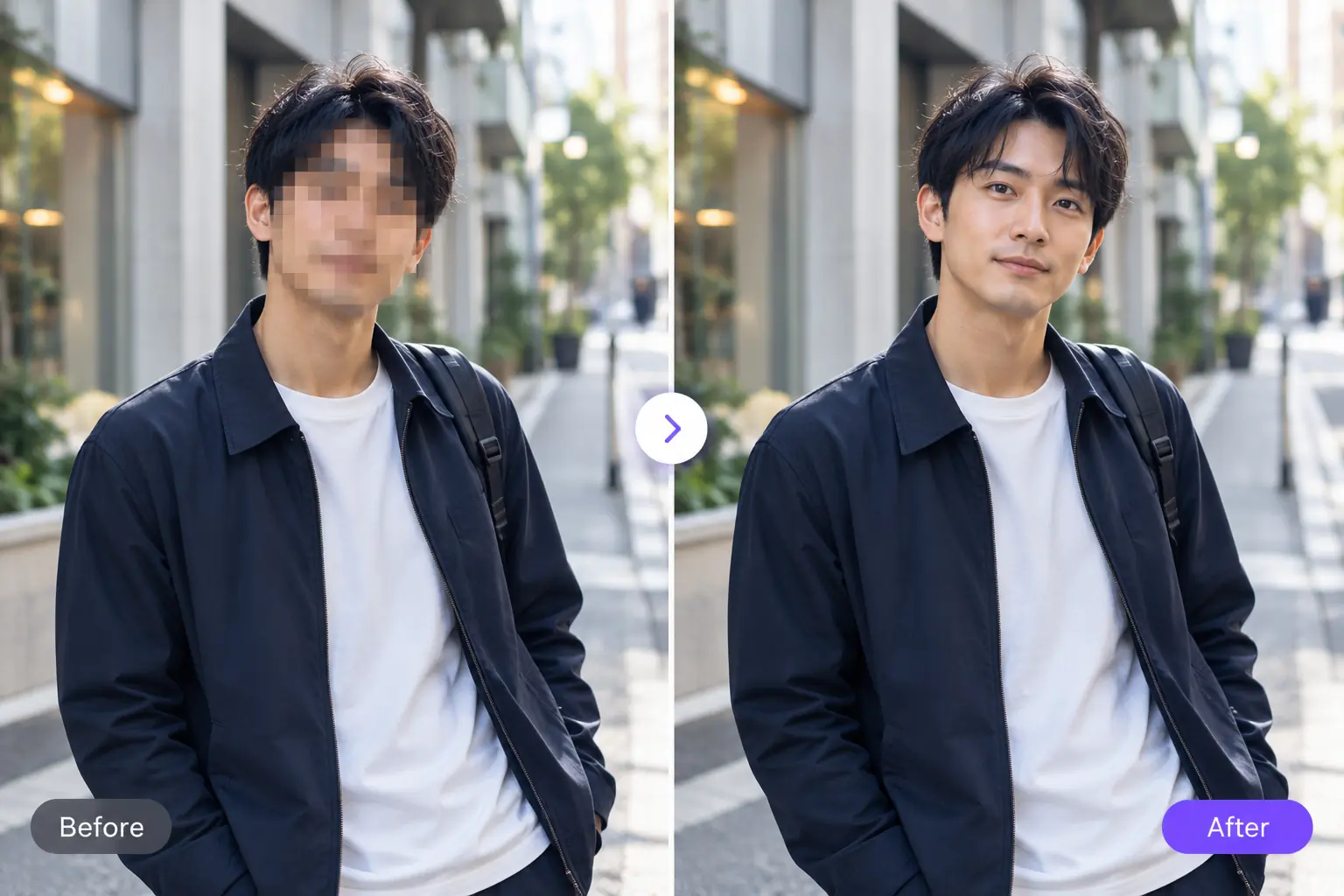
Clearer images for social posts
Improve unclear areas in posts or visual assets you created. Describe the area to edit and try a result that fits the overall look.
Improve an image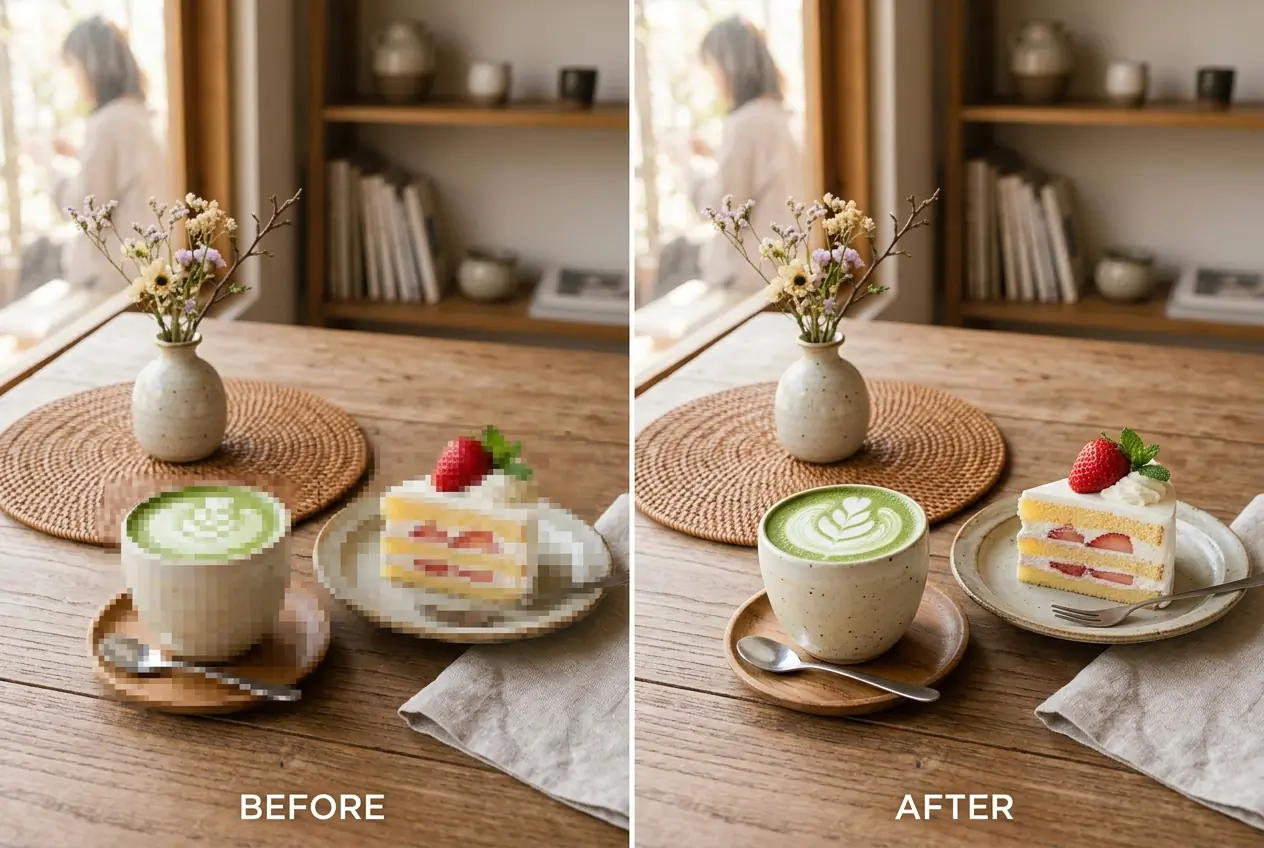
Scenery and pet photos
Reduce blocky artifacts or unwanted blur in travel and pet photos. Use nearby colors and textures to guide an edit that suits the scene.
Improve a photo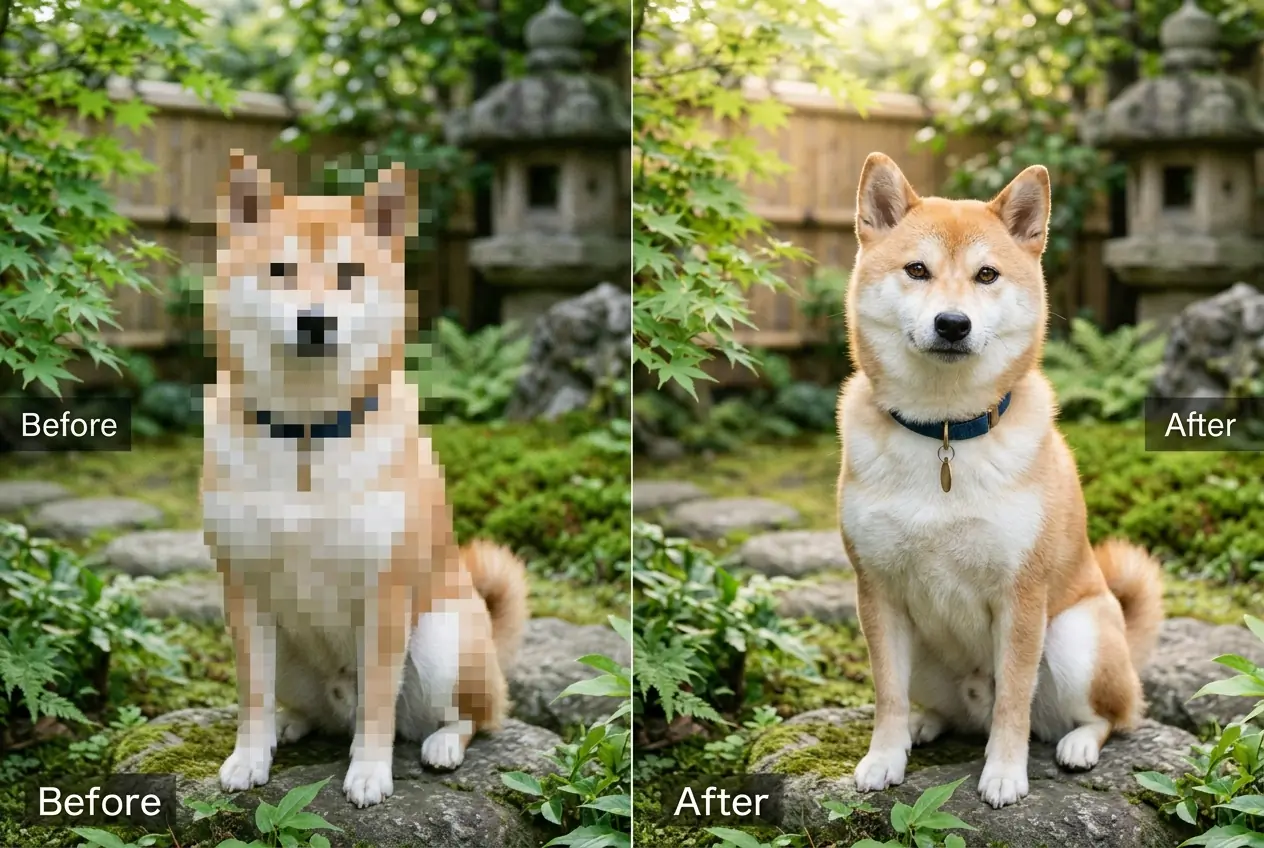
Design assets and product photos
Fill in rough-looking areas in your own designs or product images. Shapes, patterns and text may change, so compare the result with the actual product before publishing.
Improve an image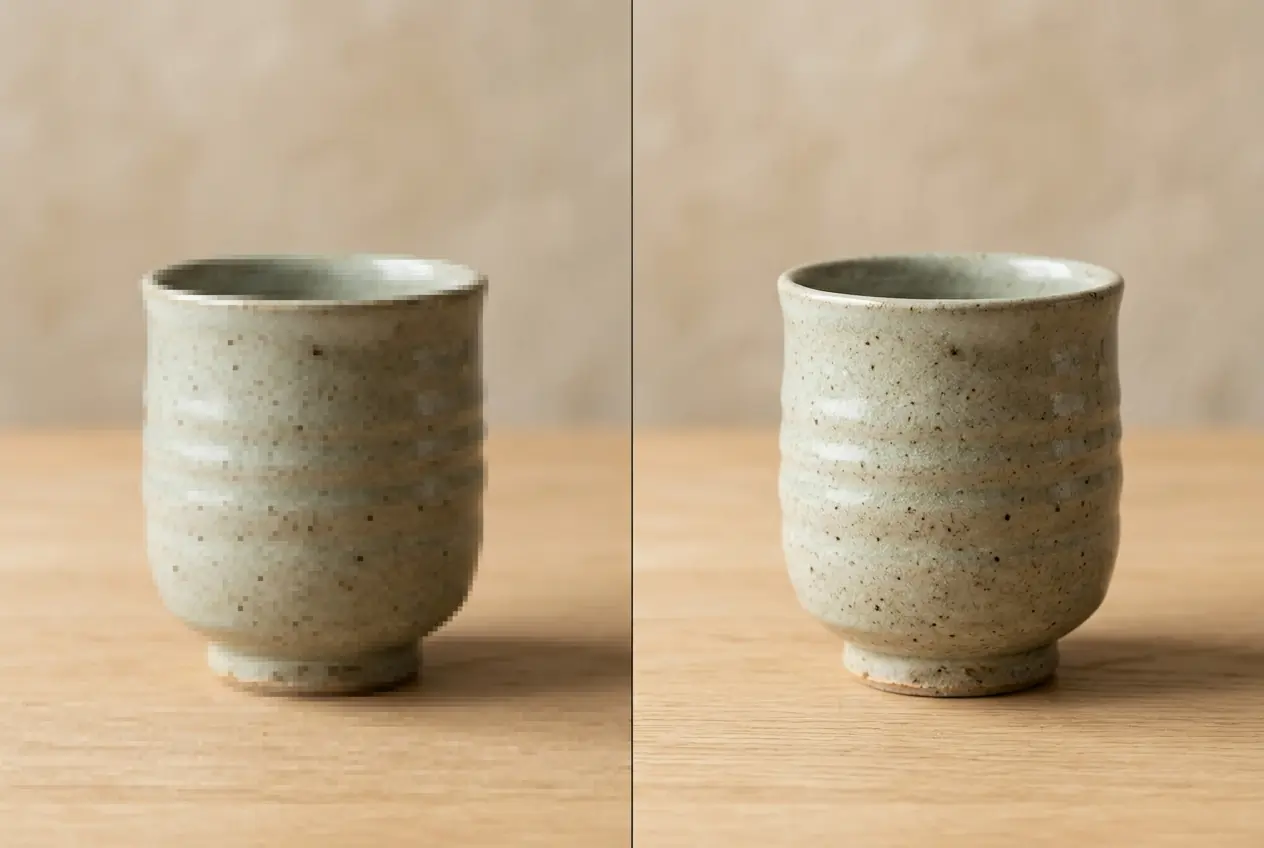
More AI image
Explore tools for image quality, backgrounds and other photo edits.
Try AI mosaic removal on your photo
Upload an image, review the provided prompt and generate. Add instructions for the areas you want to improve and see how the result looks.
Generation requires sign-in and enough credits. Claim free credits through check-in rewards.
AI mosaic removal FAQ
It generates details in areas obscured by mosaic blocks or blur, using nearby colors, shapes and textures as a guide. Those details are AI predictions and may differ from the original photo.
Upload an image, review the provided prompt, model and settings, then click Generate. You can add instructions to specify the areas you want to edit. Preview the result before downloading.
The original information lost through mosaic processing cannot be recovered accurately. AI generates plausible details from the surrounding context, so faces, text and patterns may differ from the original.
You can try editing blocky pixelation and unwanted blur. Results vary with the size and strength of the effect, image quality, model and prompt. Large obscured areas are harder to reconstruct.
AI can generate details in a face area, but the generated face may differ from the original person. It cannot be used to identify someone. Use your own photos or images you have permission to edit.
You can try it with free credits. Sign in to claim check-in credits and make sure your balance covers the selected model and settings. Each generation uses credits, and you can purchase more if needed.
Images downloaded by free users include a watermark. Watermark-free downloads are subject to paid access conditions. Check the options and pricing plans available on the download screen.
You can generate an edit using the provided prompt without knowing professional editing software. If the result needs adjustment, describe more specifically which areas to improve and which details to keep.
This page works with photos and still images. It does not support removing mosaic blocks from video files.