
Loading the creation workspace…
Remove shadows from photos and bring your subject into view
A hat shadow across a face, a dark patch on a product, or a phone shadow on paper: upload your photo and use AI to remove unwanted shadows. Get started in your browser without installing an app.

Remove shadows without simply brightening the whole photo
Increasing exposure across an entire photo can wash out areas that are already bright. This AI shadow remover targets the darkening and color cast caused by unwanted shadows. Describe the area you want to edit to guide the correction while aiming to keep the original look of your photo.
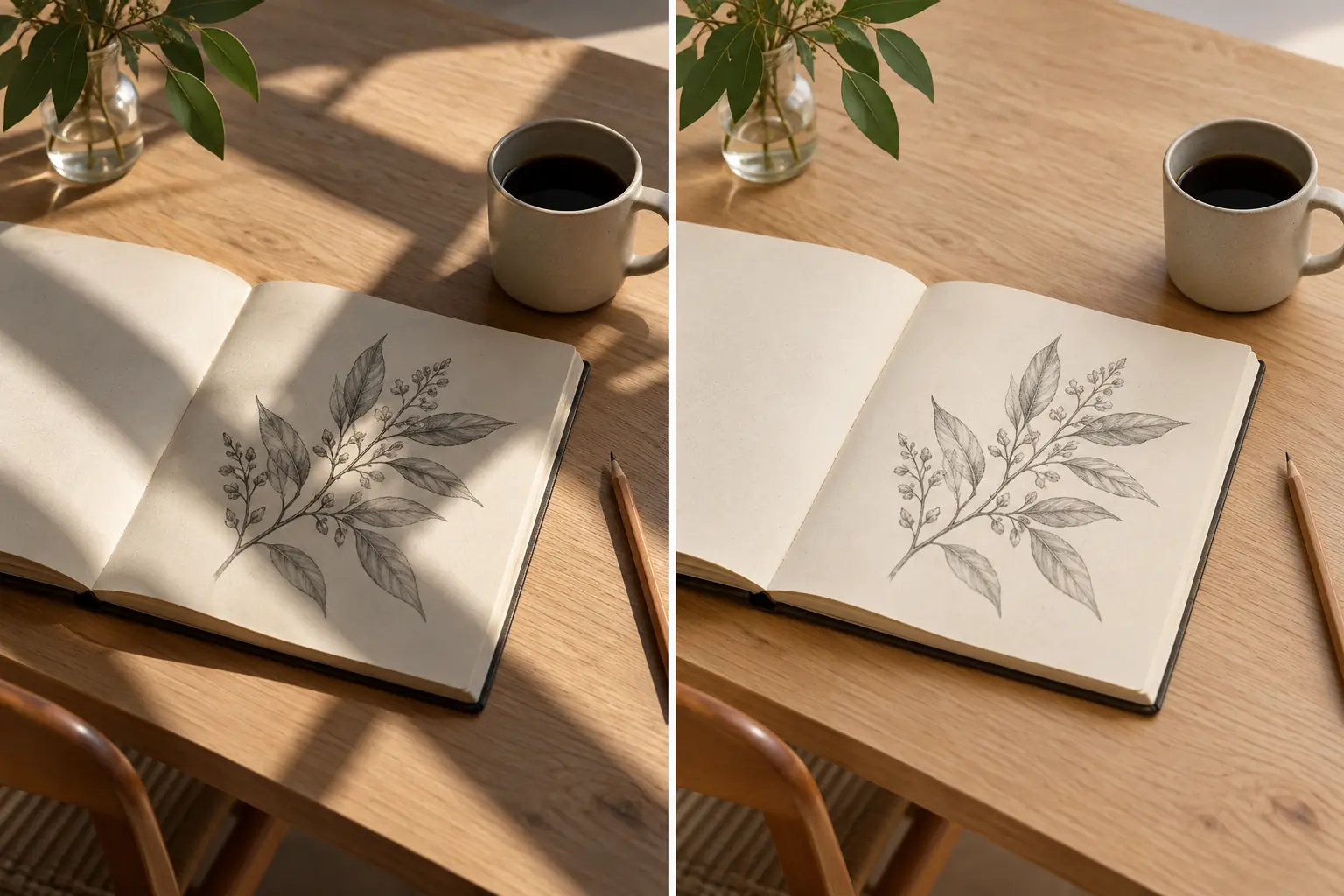
How to remove a shadow from a photo in 3 steps
Choose a photo, specify the shadows to remove, and review the result.
Upload one photo
Select a photo with unwanted shadows. JPG, PNG and WebP files up to 10MB are supported.
Choose the photo type and area
Select a portrait, product or document. Optionally add a request such as “remove the shadow on the cheek,” then click Generate.
Review and download
Compare the result with your original, checking the shadows, colors and fine details. Download the image when you are happy with it.
A simpler way to remove shadows from pictures
Let AI handle the lighting correction
Choose the photo type and start editing without learning the controls of a complex photo editor.
Describe the shadow you want removed
Specify a shadow on a face or product, along with the colors and textures you want to keep.
Use your phone or computer
Upload photos from your browser. For iPhone photos, select a file in one of the supported image formats.
Remove unwanted shadows from everyday photos
Guide the edit according to the type of photo and the affected area.
Remove shadows from a face
Try removing shadows cast by a hat, hair or side lighting in a portrait. Ask to retain the expression and skin texture, then check the result for changes to facial features.

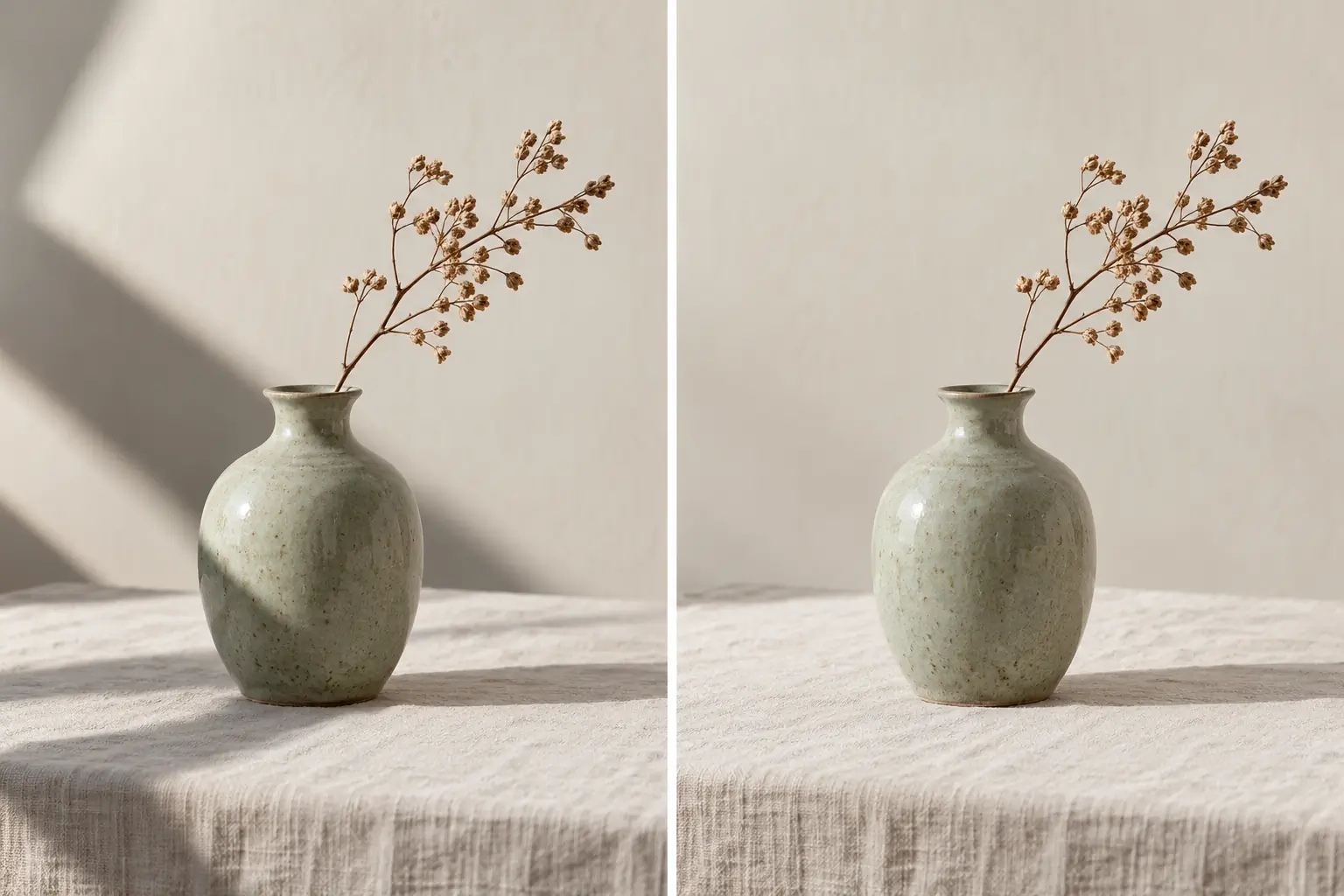
Clean up shadows in product photos
Remove distracting shadows from photos of small objects or handmade items. Compare product colors, shapes and labels with the original before using the image in a listing.
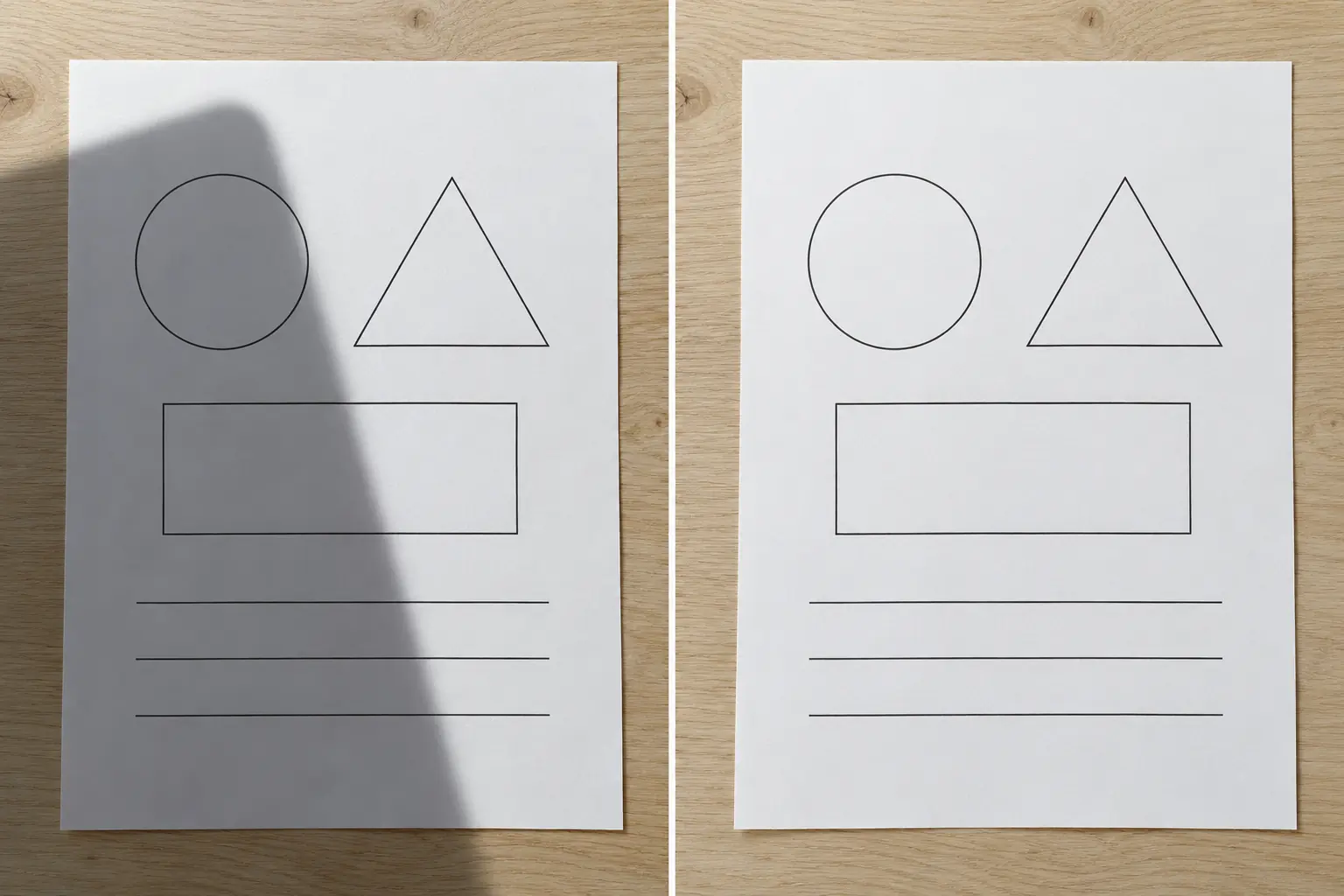
Remove a phone or hand shadow from paper
Try removing shadows cast onto a sheet of paper. AI editing can change letters or numbers, so verify the content. For documents that require an exact record, consider retaking the photo under even lighting.
After removing shadows, adjust image quality or the background if needed.
Ready to remove unwanted shadows?
Choose a photo, describe the area to edit, and check the result.
Photo shadow removal FAQ
Upload one photo, select the photo type and click Generate. To guide the edit, add a request such as “remove the shadow on the left side of the face” in the optional field.
Choose Face & portrait to try removing shadows caused by hats, hair or other objects. Results depend on the original photo and shadow depth. Compare facial features and skin texture with the source.
Yes. Use the tool in your iPhone browser and upload a JPG, PNG or WebP image. Convert HEIC photos to a supported format before uploading.
Generation uses credits. You can try it with free credits if you have enough for the task. Sign in to check your balance and the required credit amount shown on the generation button.
Upload one JPG, JPEG, PNG or WebP photo up to 10MB. This page takes one source photo at a time.
Complete removal and exact restoration are not guaranteed. Details that were not captured in very dark areas may not be recoverable. AI editing can also change nearby colors or textures, so review the result.
No brush selection is required. The AI uses your selected photo type and written instructions. This page does not provide a brush or pixel-level mask selection.
This tool is designed for dark shadows caused by blocked light. Glass reflections and bright glare are different effects and may not improve with the same correction.